
Can I measure my waist with my iPhone?
Yes, but not by pointing the camera at your body. Wrap a string around your waist, lay it straight, and then:
- Use the iPhone as a ruler (most accurate): count how many phone lengths fit along the string, then read the last bit on a true-size ruler on your screen. Any iPhone works.
- Use the Measure app (quickest): point the camera at the string and tap each end. Apple calls the result approximate.
- Photo apps estimate your waist from your outline. Fine for a rough idea, less so for tracking.
Interactive guide · about 3 minutes
Measure your waist with a cable and your iPhone
Follow the steps with the cable in your hand. Nothing you enter leaves this page.
-
Find your waist
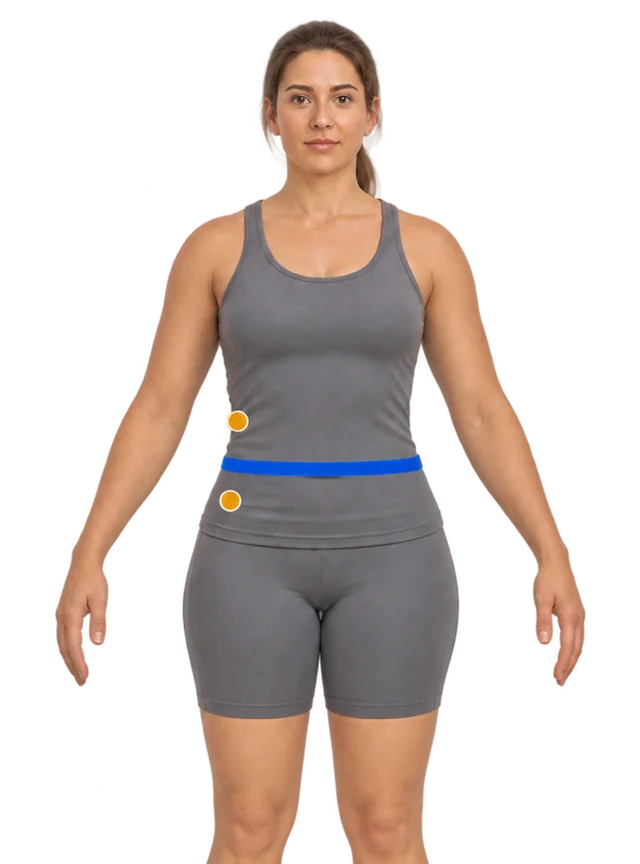 Front
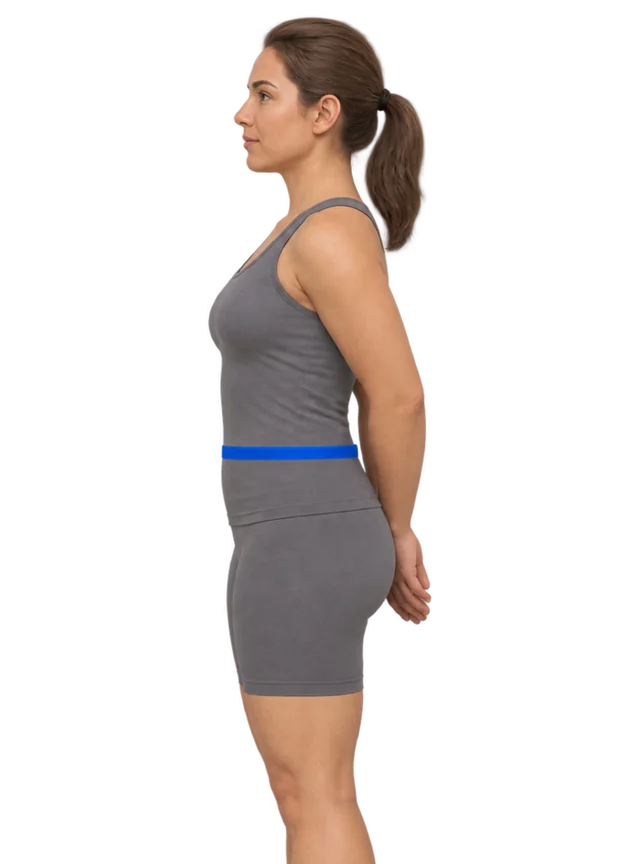 Side
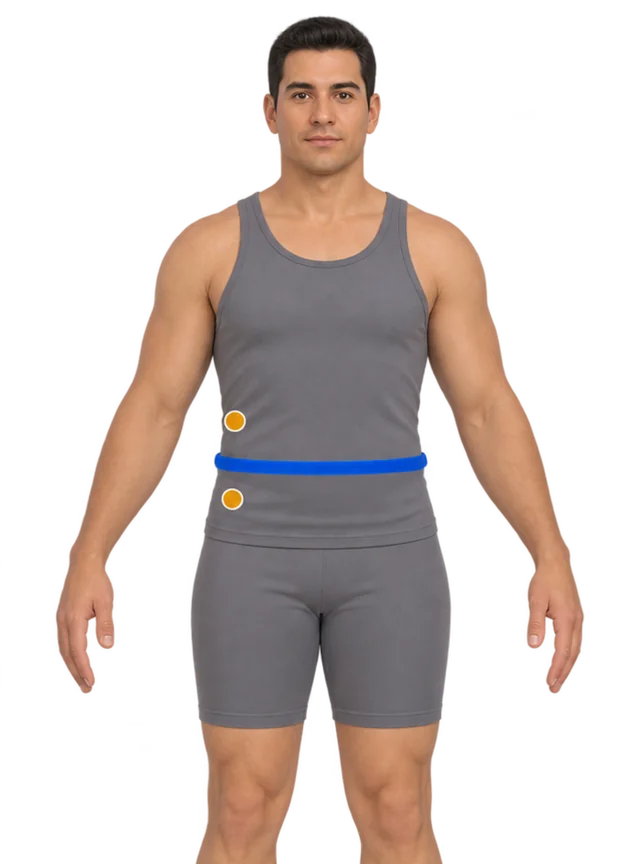 Front
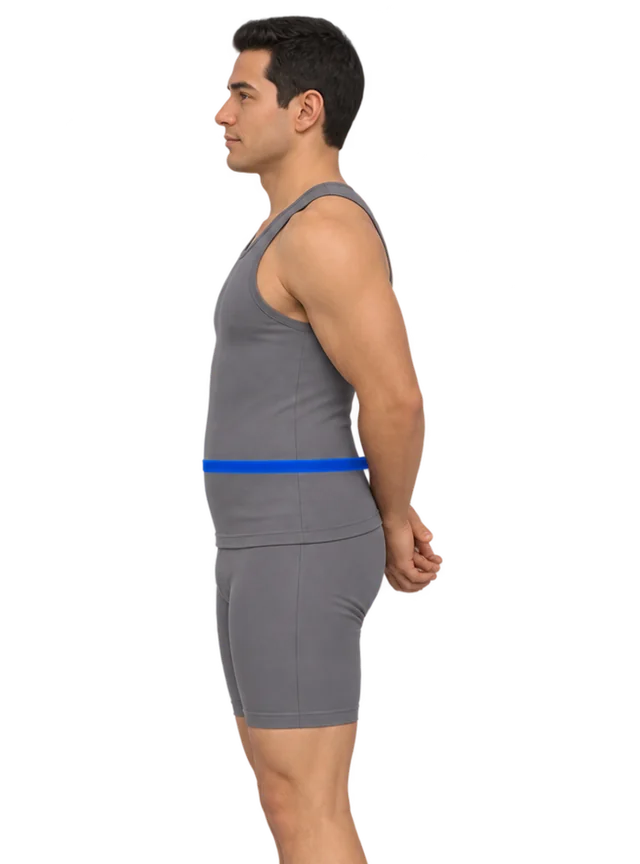 Side
Midway between the lowest rib and the top of the hip bone, level all the way round. 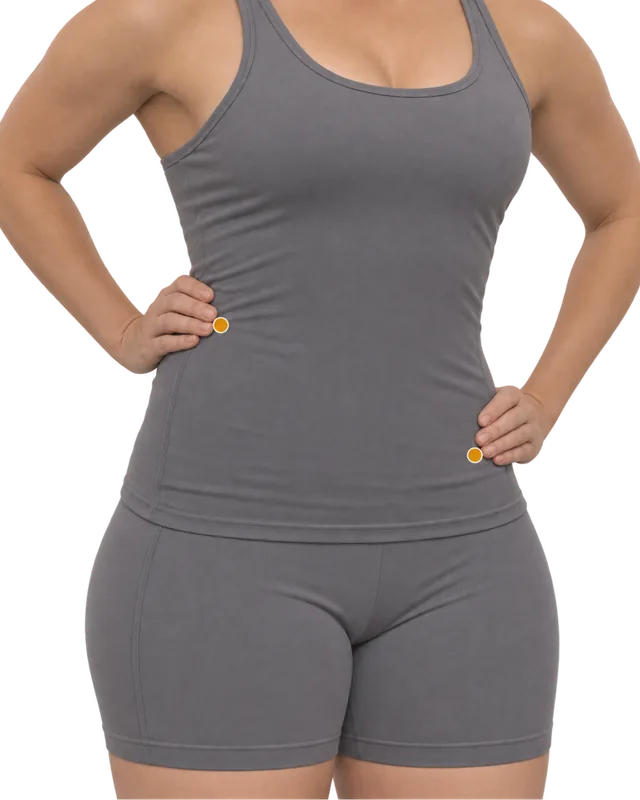
- Press into your side to find the bottom of your lowest rib and the top of your hip bone.
- Your waist is halfway between them, usually at or a little above the belly button.
- Stand relaxed and breathe out normally. Don’t suck in.
-
Wrap, pinch, lay it straight
- Use something that doesn’t stretch: your charging cable, a shoelace or string. Not yarn or elastic.
- Breathe out normally, then wrap it once around, level with the floor and snug on the skin.
- Pinch where the end meets it, mark that point with a pen or a bit of tape, and lay it straight along a table edge.
Before you pinch, check it in a mirror
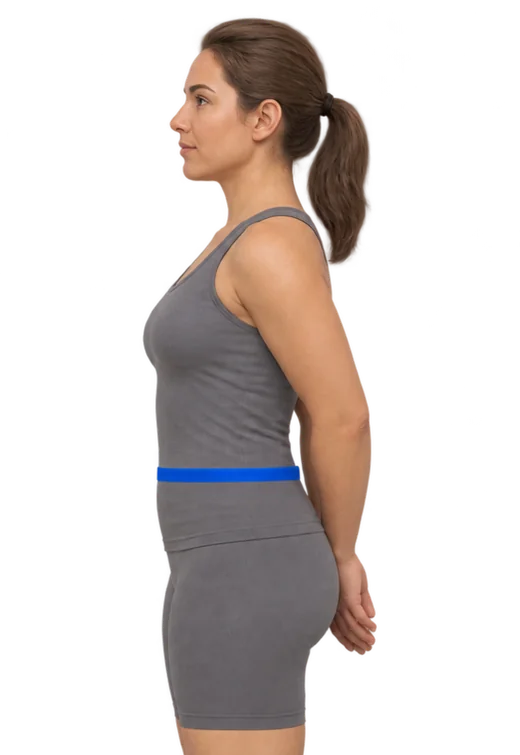
✓ RightLevel and relaxedSame height at your belly and your back. Breathe out normally. 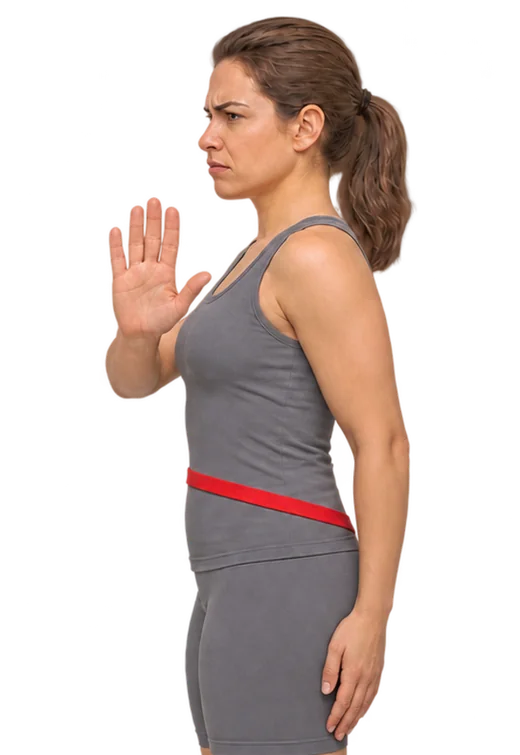
✗ Reads highDips at the backThe usual mistake. Turn sideways to the mirror, or run a hand round to feel it. 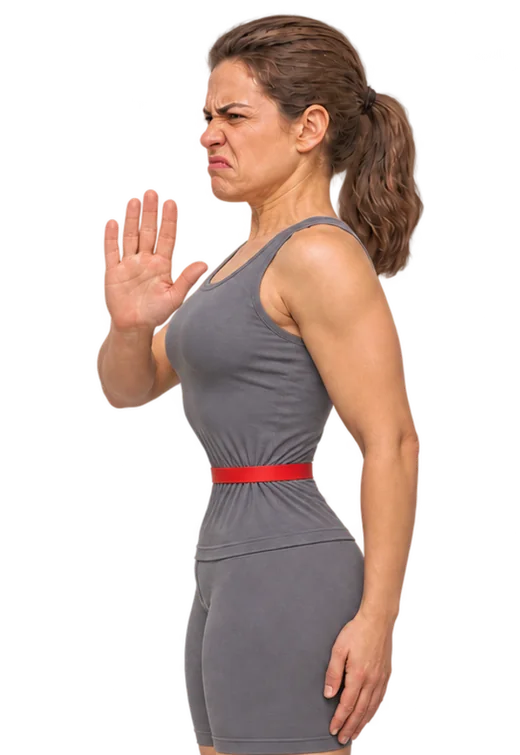
✗ Reads lowSucked in or pulled tightThe cable should just touch your skin, without pressing in. -
What will you use as the ruler?
Looks like you’re on one of these:
Not sure which iPhone? Settings › General › About › Model Name. Take the case off: it adds a few millimetres to every step.
-
Step it along the cable
Put the bottom edge at the end of the cable, mark where the top edge lands, move up to the mark, repeat. Count every full length before your mark.
full lengths -
Measure the last bit
Your iPhone’s screen becomes a true-size ruler. Lay the phone flat, put your mark on the start line, and slide the line to the end of the cable. Accurate to about a millimetre.
Hold the cable against your phone and drag the blue line to where the cable ends.
0 cm past the last full length -
Your waist
Choose your ruler and set the number of lengths you counted to see your number.
0
See it on a 3D body
More measurements App only
What you can measure. All on one body.
- Weight
- Neck
- Chest
- Waist
- Thigh
- Shoulder girth
- Arm
- Wrist
- Hip
- Calf
Left and right · Your own spots
The web version can’t do this
This page can only shape the body from your height, weight and waist. In the Contura app, your hips, chest, thighs, arms and more shape your 3D body too. You can turn it any way you like and put two dates side by side to see exactly what changed.
Download on the App StoreFree for iPhone and iPad. No photos needed.
Add your height and weight to see a body with your measurements. Keep this number, and see what it does next
One measurement tells you where you are. In Contura you save it in two taps, add the rest when you like, and your 3D body updates with every entry, so next month you can see exactly what changed. No photos, no account.
Download on the App Store
What you can measure. All on one body.
- Weight
- Neck
- Chest
- Waist
- Thigh
- Shoulder girth
- Arm
- Wrist
- Hip
- Calf
Left and right · Your own spots
Turn it any way you like, in the app
In Contura this body is yours: drag to turn it, pinch to zoom. Save this waist today, measure again in a week or a month, and see the two bodies side by side, red where you gained and blue where you lost.
Download on the App StoreFree on iPhone. No photos, no account.
Lay a bank or ID card upright on the dashed outline, top edge on the blue line. Its sides should sit on the dashed lines. If not:
Why the camera can’t just measure your waist
Your waist is a distance around you, including your back. A camera only sees the side facing it. Apple’s Measure app reads straight lines between points it can see, and photo-based apps work out a circumference from your outline. Wrapping a string first turns the curve into a straight line, which is something a phone can measure well.
1. The iPhone as a ruler
This is the most accurate of the three, because nothing is estimated. Apple publishes every iPhone’s size to a tenth of a millimetre: an iPhone 16 is 147.6 mm long, an iPhone 17 Pro 150.0 mm. Step the phone along the string, count, and multiply.
- Take the phone out of its case.
- Put the bottom edge at the start of the string and mark where the top edge lands.
- Move the phone up to the mark and repeat until the next full length would go past the end.
- Measure what is left on the on-screen ruler in the guide above: the screen shows real centimetres for your model.
Full instructions, where exactly to put the string, and a table of every iPhone’s length are in How to measure your waist without a tape measure.
2. The Measure app
Measure comes with every iPhone and lives in the Utilities folder. Apple’s guide says to:
- Open Measure and move the phone slowly so it can see the table.
- Line up the dot in the middle of the screen with one end of the string and tap +.
- Move slowly to the other end and tap + again to see the length.
Apple recommends measuring well-defined objects 0.5 to 3 metres (2 to 10 feet) from the phone and says measurements are approximate. A string is thin and can curve slightly, so expect the reading to vary a little each time. Take it twice. On supported models, holding the phone close to the line shows a ruler view with finer marks.
3. Apps that measure from photos
Some apps ask for a front and side photo, or a short video of you turning, and estimate your waist, hips and chest from your outline. They are quick and need no string. Their limits come from what a photo cannot show:
- The distance around your body has to be inferred from its width and depth in the picture.
- Loose clothing, hair, posture and how you stand all change the outline.
- Lighting, background and camera distance change it too, so two scans a week apart can differ when you have not.
They can be fine for a starting estimate. If you are tracking progress over weeks, a measured string is more repeatable. We compare body measurement apps, including a photo-based scanner, in body measurement apps compared.
The three side by side
| iPhone as a ruler | Measure app | Photo apps | |
|---|---|---|---|
| You need | String, any iPhone | String, any iPhone | An app, space to stand, often a second person or a stand |
| Time | About 2 minutes | About 1 minute | A few minutes |
| What sets the accuracy | How carefully you mark each step | The app’s estimate of the two points | The app’s estimate of your shape |
| Best for | Numbers you will compare over time | A quick first reading | A rough idea without a string |
After you have a number
A single waist number tells you where you are today; a series of them tells you which way you are going. Measure at the same spot, at the same time of day, every week or two. If you have your height, the guide above also gives your waist-to-height ratio: NICE in the UK suggests keeping it under 0.5.
Questions people ask
Can the Measure app measure around my waist?
Not directly. Measure reads straight lines between points it can see, and a waist is a curve that goes behind you. Wrap a string around your waist first, lay it flat on a table, and measure the string instead.
Do I need an iPhone Pro with LiDAR?
No. The phone-as-a-ruler method works with any iPhone, because it only uses the phone’s length from Apple’s specs. The Measure app also works on iPhones without LiDAR; Apple lists some extras, such as edge guides and the ruler view, as features of supported models.
Are body measurement apps that use photos accurate?
They estimate. A photo shows your outline from the front and side, not the distance around you, so the app infers your circumference from that outline. Clothing, posture, lighting and distance all shift the result. They can be useful for a rough idea; for a number to track week to week, a measured string or tape is more repeatable.
Which iPhone measurement method is the most accurate?
Stepping the phone itself along a string. Its length is fixed and published by Apple to a tenth of a millimetre, so the only errors are in how carefully you mark each step: about a centimetre over a whole waist if you take care.
Can I use my iPhone to measure other body parts?
Yes, the same way. Hips, chest, thighs and upper arms all work with a string and the phone as the ruler. Arms and thighs are short, so most of the work is done with the phone’s short side.
Your body in 3D
Now see that waist in 3D
The numbers from the guide above are filled in. Contura builds this body from what you measured, not from a photo. Tap it to turn it around.
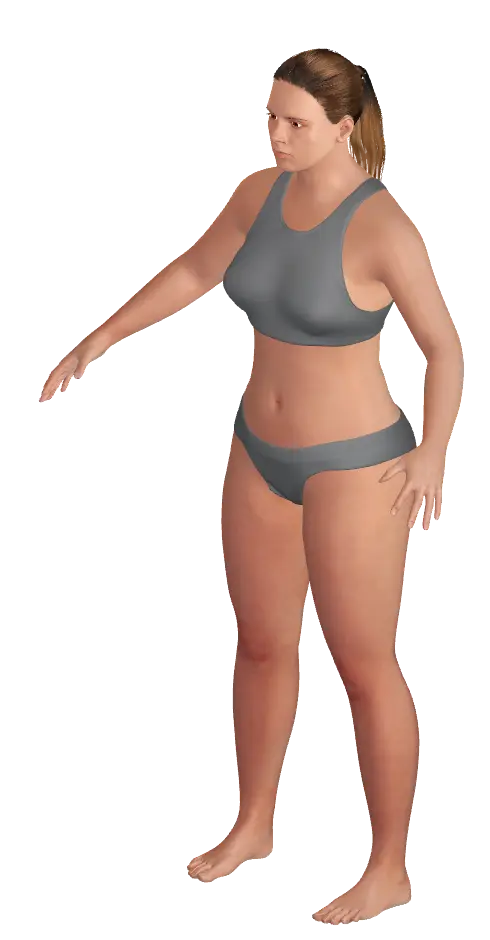
This preview is an estimate from a parametric 3D body model. It is not a body scan or a medical assessment.
What you can measure. All on one body.
- Weight
- Neck
- Chest
- Waist
- Thigh
- Shoulder girth
- Arm
- Wrist
- Hip
- Calf
Left and right · Your own spots
Turn it around in the app
In Contura this body turns any way you like. Log your measurements each week and it changes with you, so you can put any two dates side by side.
Download ConturaSources
- Measure dimensions with iPhone iPhone User Guide, Apple Support (iOS 27; checked 16 November 2026)
- iPhone Tech Specs (one page per model, Size and Weight section) Apple Support, iPhone 11 to iPhone 18 Pro Max and iPhone Duo (checked 16 November 2026)
- NICE guideline NG246: Overweight and obesity management, section 1.9 National Institute for Health and Care Excellence, published 14 January 2025, last updated 8 January 2026